
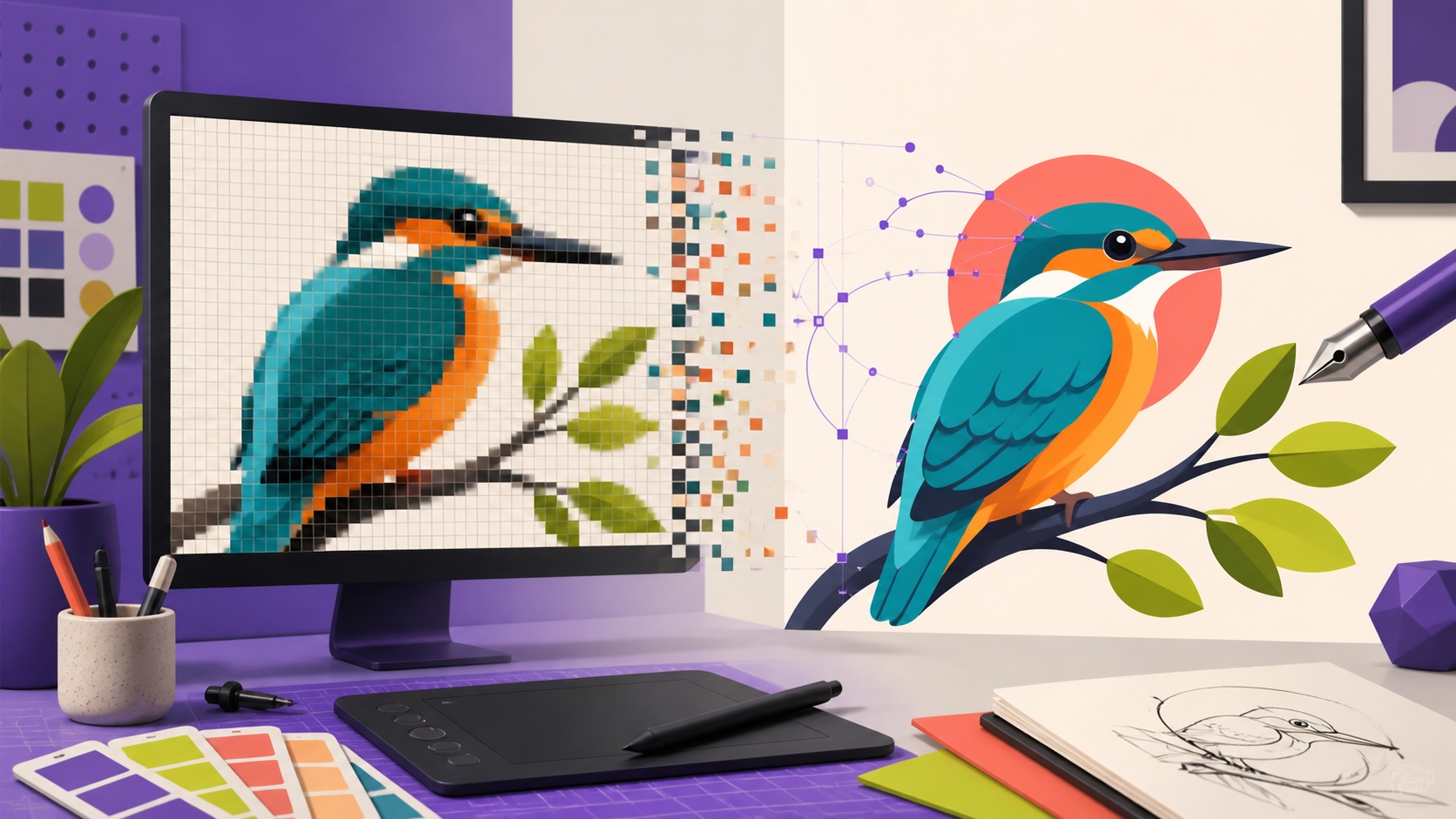
Use SVG for logos, icons, and flat artwork that must stay sharp at any size. Use PNG when you need transparency, crisp raster edges, or a widely compatible image for apps and social platforms. Use JPG for photographs when small file size matters and transparency is not required. Keep the highest-quality editable or vector master you have, then export separate delivery files for each channel instead of forcing one format to do every job.
The fastest way to choose between PNG, SVG, and JPG
The format should follow the job. If the artwork is a logo, icon, badge, line drawing, or flat illustration that may appear at many sizes, SVG is usually the strongest master because it stores shapes rather than a fixed grid of pixels. If the image needs a transparent background or must work in software that does not accept vectors, PNG is usually the safer raster choice. If the image is a photograph with thousands of tones and no transparency requirement, JPG is often the most efficient delivery format.
An AI image editor can help create, clean, or transform the artwork, but the export decision still depends on where the file will be used. Makerr Studio's PNG Maker is useful when you need a transparent raster asset, while the Image Vectorizer is designed for turning suitable pixel artwork into scalable vector-style graphics.
PNG versus SVG: pixels versus scalable geometry
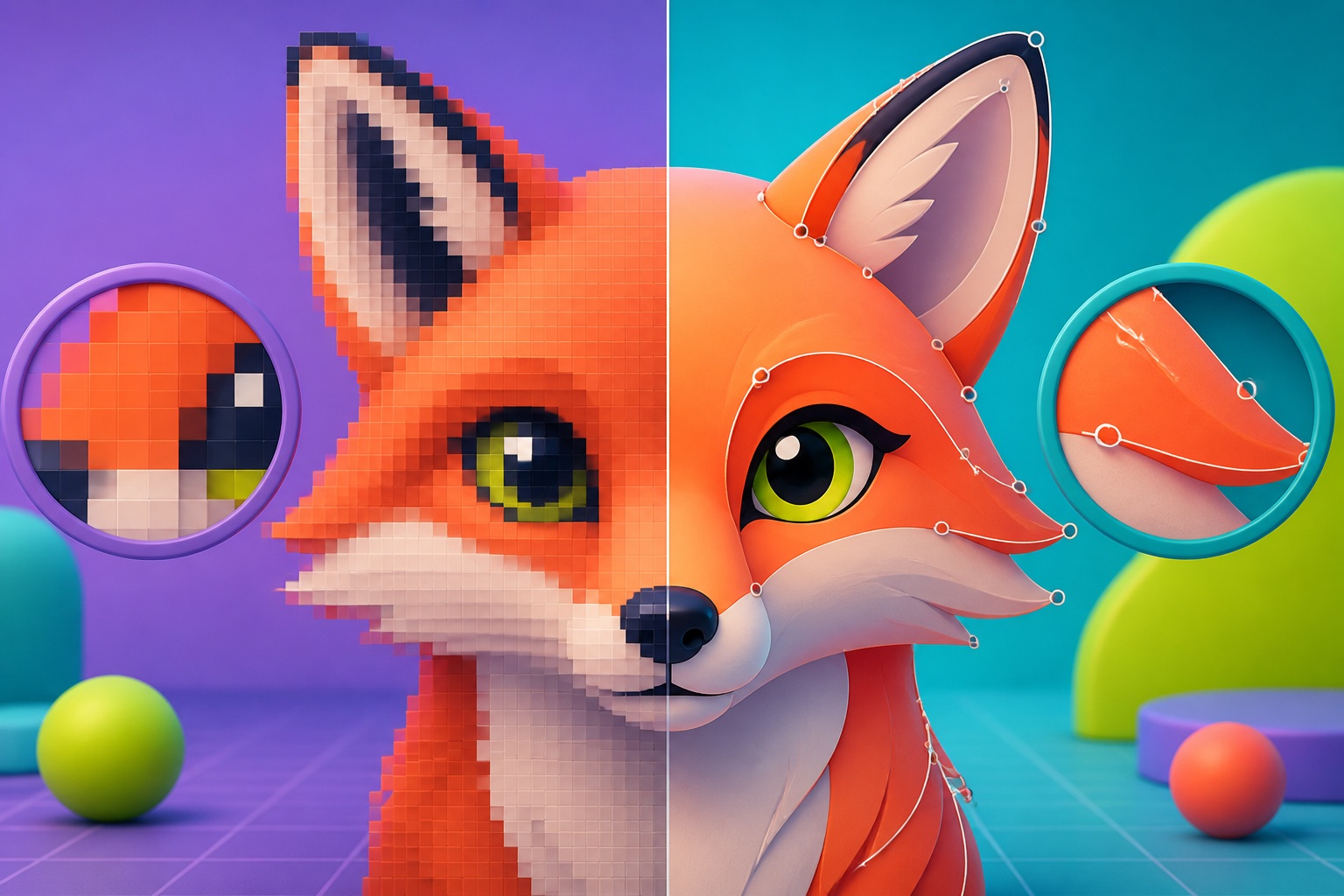
PNG is a raster format, which means the image is stored as a fixed grid of pixels. A 1000-by-1000 PNG contains a finite amount of visual detail. It can look excellent at its intended size, but if you enlarge it far beyond that size the edges eventually soften or become visibly pixelated. PNG supports transparency and uses lossless compression, which makes it valuable for logos, UI graphics, cutout products, screenshots, and other images where clean edges matter.
SVG is a vector format. Instead of describing every pixel, it can describe lines, curves, fills, and shapes mathematically. A well-built SVG logo can be displayed very small or very large without the same resolution limit as a raster file. The earlier AI image vectorizer guide explains how raster artwork is interpreted as paths and why flat graphics usually convert more cleanly than photographs.
When PNG is the better choice
Choose PNG when transparency is essential and the destination expects a conventional image file. Email signatures, presentation slides, marketplace listings, social graphics, overlays, product cutouts, and many no-code tools work reliably with PNG. It is also a practical handoff format when a client needs a ready-to-use logo on a transparent background but does not need to edit the underlying vector paths.
PNG also handles sharp edges, flat color, text, and screenshots better than heavily compressed JPG. The tradeoff is file size: large transparent PNGs can become expensive to load on a website. Export them near the actual dimensions needed and preserve the clean master separately. If the background still needs removing, the AI background remover guide covers difficult edges such as hair, glass, fur, and soft contact shadows.
When SVG is the better choice
Choose SVG when the artwork is fundamentally shape-based and needs to scale across websites, apps, signage, packaging, print concepts, or responsive layouts. Logos and icons are the clearest examples. A single clean SVG can remain sharp on a small navigation bar and a large screen because the browser redraws its geometry instead of enlarging a fixed pixel grid.
SVG is not automatically superior just because it is scalable. A messy trace can contain thousands of unnecessary paths, making the file difficult to edit and sometimes heavier than a simple raster image. Photographs are particularly poor candidates for literal vector conversion because they contain too many subtle changes in color and texture. Use SVG when the visual idea can be expressed efficiently as shapes, not merely because a tool can wrap or trace an image into an .svg file.
When JPG is still the right answer
JPG remains useful because photographs contain continuous color and tonal variation that compress efficiently. A product lifestyle photo, team portrait, travel image, blog hero photo, or large photographic background can often be delivered as JPG at a much smaller file size than PNG while still looking excellent at normal viewing size. This is why JPG remains common across websites and content systems.
The tradeoff is lossy compression. Every aggressive save can discard information and introduce blocks, halos, or softness around detail. JPG also does not support transparency. Keep the original or a high-quality master and export JPG only for delivery. Avoid opening and resaving the same compressed JPG repeatedly as your working file because each generation can lose more detail.
A simple format decision table for real projects
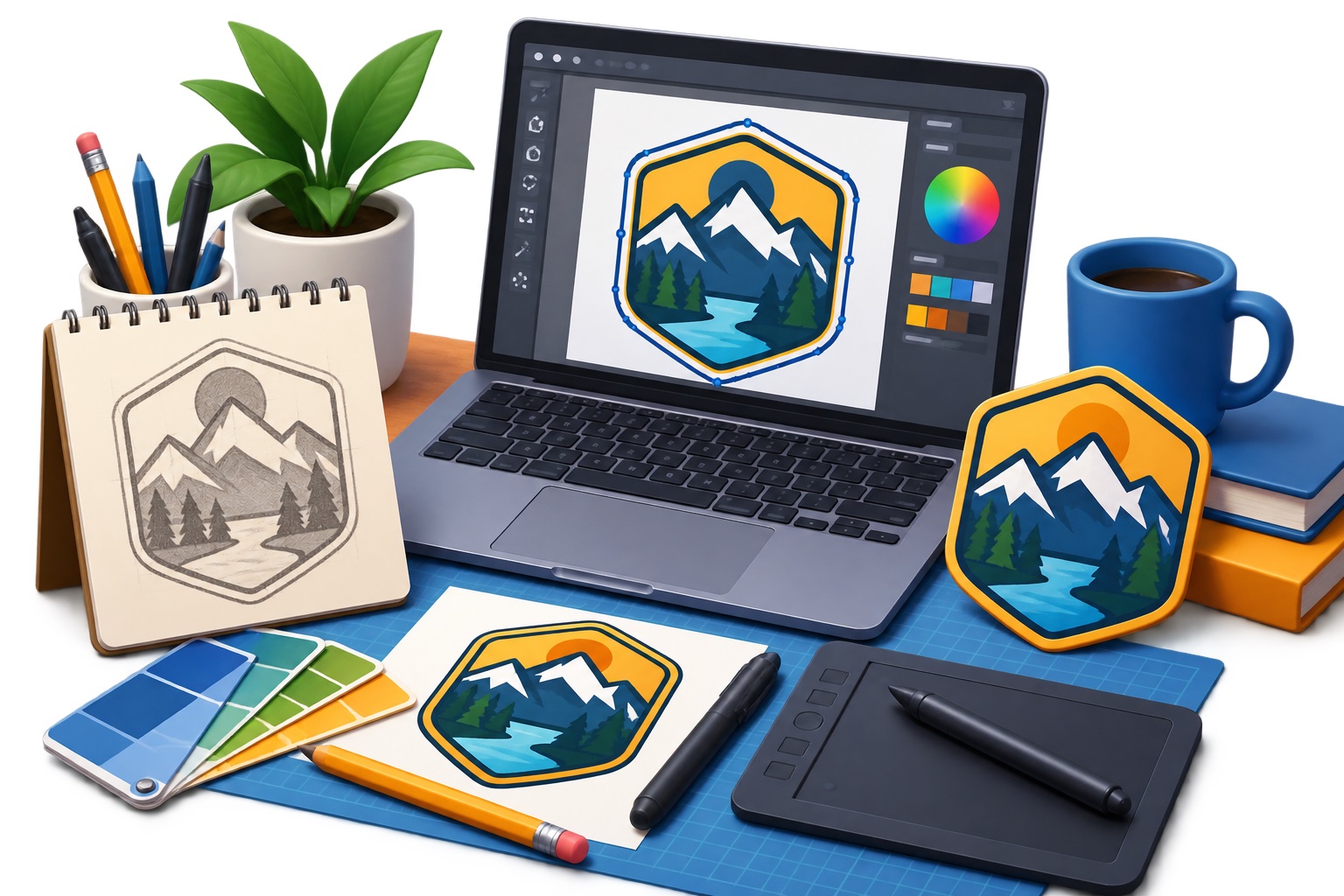
For a website logo, keep SVG as the main asset and export PNG as a fallback. For a transparent product cutout, use PNG unless the product itself is simple vector artwork. For a photographic blog image, JPG is usually efficient. For an icon set, SVG gives responsive sharpness. For a presentation, PNG is often the least troublesome across devices. For print, ask the printer whether they want PDF, EPS, SVG, or a high-resolution raster file rather than assuming the web format is acceptable.
The broader file format guide on LogoMakerr covers additional document, image, audio, and video formats. For day-to-day brand work, however, PNG, SVG, and JPG solve most common delivery needs when each is used for the job it handles best.
- Logo master: SVG.
- Transparent logo fallback: PNG.
- Website photograph: JPG at an appropriate quality level.
- Icon or flat illustration: SVG.
- Transparent product cutout: PNG.
- Social post with photography: JPG or PNG depending on the platform and graphic detail.
Do not confuse an SVG wrapper with true vector artwork
One of the easiest mistakes is assuming that every file ending in .svg is truly vector. An SVG file can contain or reference raster imagery. If a PNG is simply embedded inside an SVG container, the artwork will still behave like pixels when enlarged. True vectorization recreates visible forms as paths, curves, fills, and other scalable geometry.
To check, open the SVG in a vector editor and try selecting individual shapes. Zoom in on curved edges. A genuine traced vector should remain mathematically smooth, although poor tracing can still create awkward nodes. If the editor reveals one rectangular image object containing the original bitmap, you have a container, not a reconstructed vector.
Build a clean master-and-export workflow
The safest workflow is to separate master files from delivery files. Keep the highest-quality editable source available: an SVG or design file for vector artwork, or the original high-resolution image for photography. From that master, export smaller PNG or JPG copies for specific channels. Name them clearly by purpose and size rather than overwriting the master with each revision.
This also protects visual consistency. A social team, web developer, printer, and sales colleague may all need different versions of the same asset. The brand consistency guide explains why approved colors, spacing, typography, and image treatment should stay connected across those exports. One controlled source prevents slightly different logo files from spreading through the organization.

Check transparency, dimensions, and file weight before publishing
Before uploading any asset, place it on both light and dark backgrounds. This reveals stray white pixels, soft halos, accidental matte colors, and transparent areas that were not cleaned correctly. Confirm the pixel dimensions of raster exports and test them at the actual display size. A file can be technically high resolution and still be unnecessarily large for a small website card.
For SVG, inspect the viewBox, unwanted whitespace, stray paths, and file complexity. For JPG, compare visual quality against file size instead of automatically choosing the maximum setting. For PNG, remove unused transparent margins and resize to the largest realistic display requirement. The goal is not the smallest possible file or the highest possible resolution in isolation; it is the smallest file that preserves the quality needed for its destination.
The practical rule: keep the master, export for the destination
There is no universal winner in PNG versus SVG versus JPG. SVG is usually the best master for scalable graphic artwork. PNG is the flexible choice for transparent raster assets and crisp interface graphics. JPG is the efficient choice for photographs when transparency is unnecessary. Problems usually begin when one delivery file is treated as the only surviving master.
Keep the strongest source, label it clearly, and create new exports from that source whenever a different channel needs a different format. That approach gives you better quality, easier revisions, smaller web files, cleaner print handoffs, and fewer situations where a tiny compressed image becomes the accidental source for everything that follows.
People also ask
Frequently asked questions
Is SVG better than PNG for logos?
Usually yes for the master logo because SVG scales cleanly at different sizes. Keep PNG versions too for apps, email signatures, presentations, and platforms that do not accept SVG.
Should I use PNG or JPG for a website?
Use JPG for most photographs when smaller file size matters. Use PNG when you need transparency, screenshots, sharp flat graphics, or details that degrade noticeably with JPG compression.
Can I convert a PNG into a real SVG?
Yes, if the image is traced into vector paths and shapes. Simply embedding the PNG inside an SVG container does not make the underlying artwork vector.
Which format supports a transparent background?
PNG and SVG both support transparency. JPG does not. Choose PNG for transparent raster images and SVG for transparent vector artwork.