
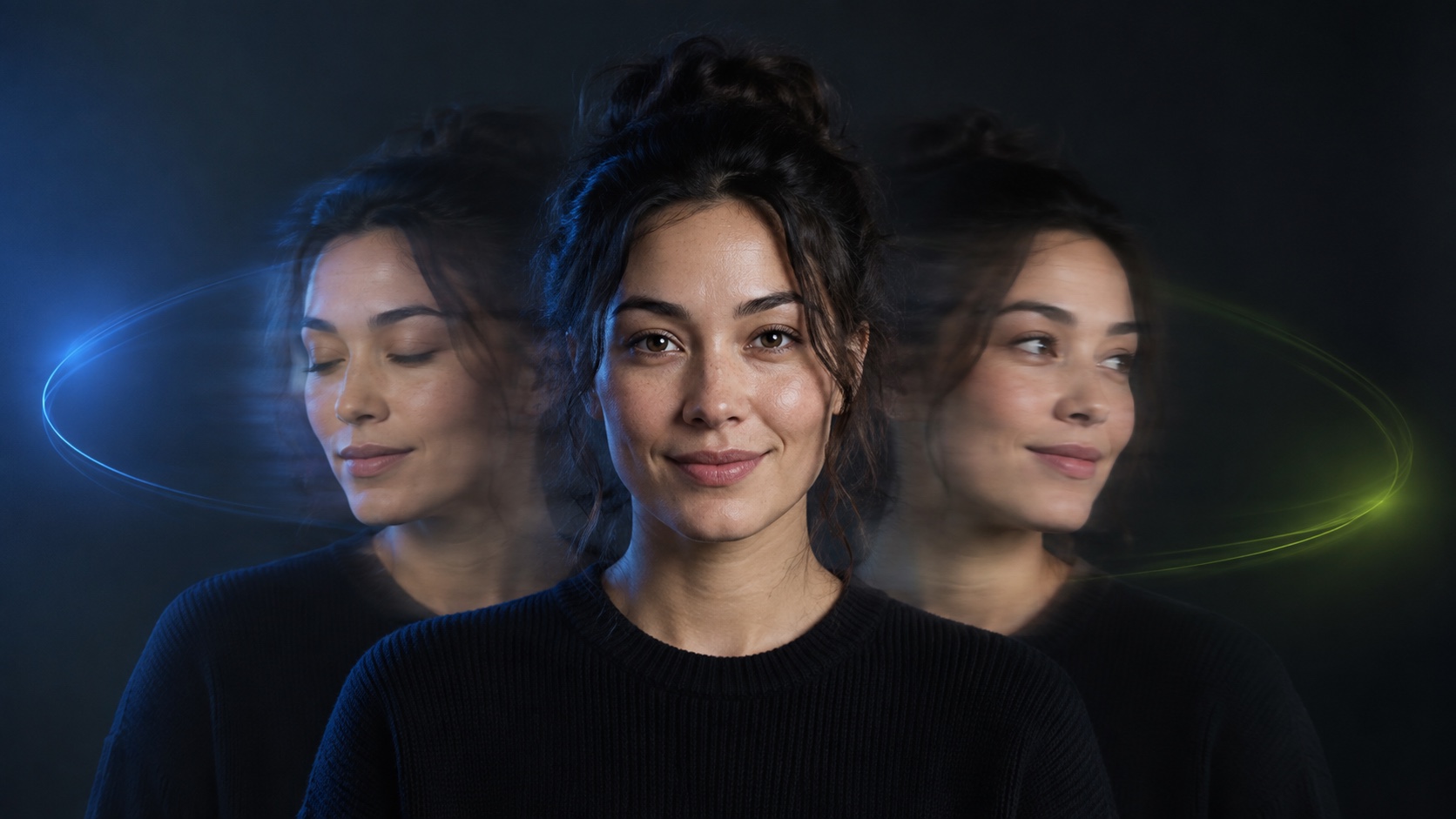
To make an animated GIF profile picture, start with a sharp, evenly lit head-and-shoulders portrait on a simple background. Add one restrained movement—such as a blink, a tiny head turn, or a soft expression change—and keep the face, crop, clothing, lighting, and background stable. Preview the first-to-last-frame transition at actual avatar size, remove any visible jump, then export a lightweight loop only after checking that the destination currently accepts animated profile images.
What makes an animated profile picture work
An animated profile picture is a short repeating portrait designed to remain recognizable at a very small size. Its job is not to reproduce a full video performance. A useful loop gives the viewer one clear visual idea—a blink, a slight change in gaze, a gentle head turn, or a controlled shift in light—while preserving the subject's identity and the stability of the frame. The movement should be noticeable enough to feel intentional but quiet enough that the avatar does not distract from the surrounding page or conversation.
Open the animated GIF profile picture workspace in Makerr Studio, then choose the dedicated animated GIF profile picture tool. Keep the first request narrow and treat the output as a creative motion asset, not as a recording of something the person actually did. One well-defined movement gives you a better review target than a long list of simultaneous changes to expression, pose, background, and camera angle.
Choose a source portrait that can survive motion
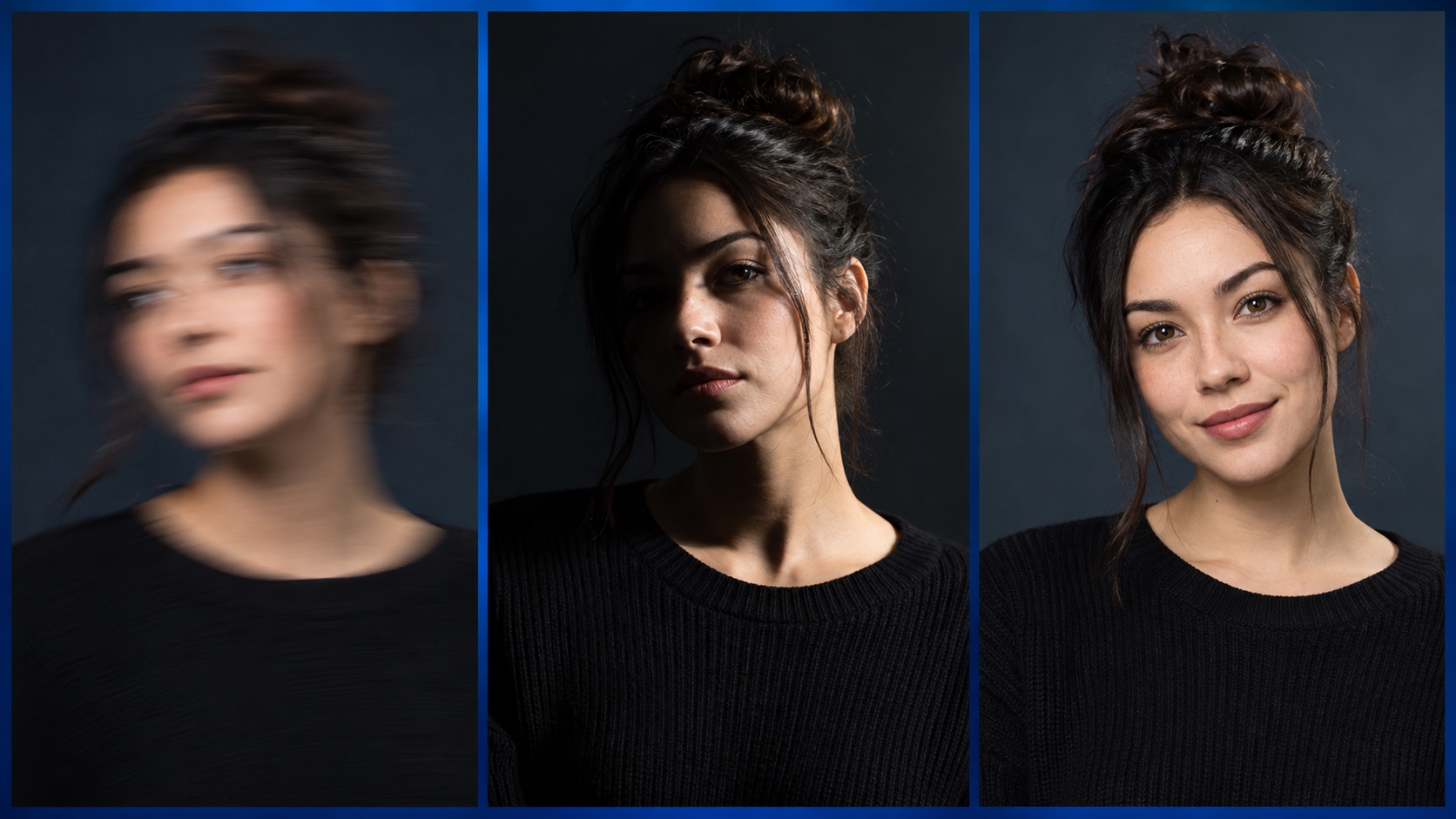
Start with the largest original portrait you have rather than a screenshot or a file repeatedly compressed by messaging apps. A centered head-and-shoulders composition usually works well because the face stays readable after the image is reduced to avatar size. Leave space above the hair and beside the shoulders so a small generated movement does not collide with the crop. Both eyes, the mouth, jawline, and hairline should be visible, and the subject should already look like the person you want viewers to recognize.
Soft frontal light or gentle side light gives the animation stable facial information without hiding half the face. Avoid heavy motion blur, hard colored spotlights, beauty filters, sunglasses, a hand across the face, and backgrounds filled with moving people or fine patterns. The earlier portrait preparation checklist can help you review focus, framing, expression, and lighting before uploading. A clean source will not guarantee a perfect result, but it makes genuine errors easier to identify instead of confusing them with problems already present in the photograph.
Plan one subtle movement before generating
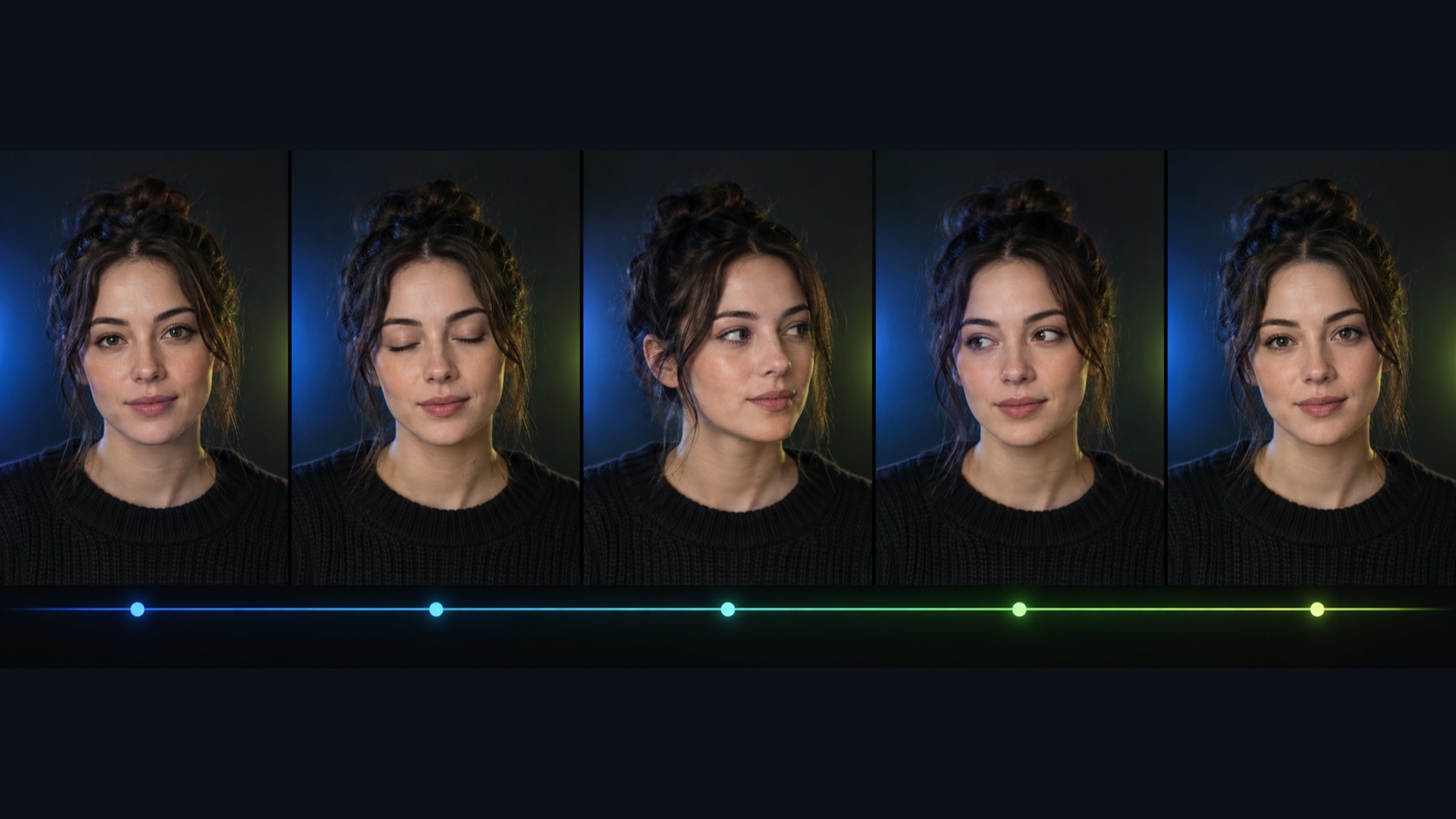
Decide what the loop should communicate before asking the tool to animate it. A calm blink feels natural for a professional avatar. A tiny head turn or glance can add energy to a creator profile. A slight smile change may suit an informal community account. Pick one primary action and keep its range small. When the head, eyes, mouth, hair, camera, and background all move at once, viewers notice instability instead of personality.
Write the constraint in observable terms: keep the same person, facial proportions, hairstyle, clothing, crop, background, and light direction; add only a slow blink or a few degrees of head movement; return smoothly to the opening pose. Avoid vague instructions such as make it cinematic or make it pop unless you also describe what may change. Precise limits protect the features that matter while leaving enough room for a coherent motion interpretation.
Step by step: create a seamless looping avatar
Upload a copy of the approved source portrait and save the untouched original separately. Request one restrained movement, then generate a single result and watch it several times before changing anything. First decide whether the person remains recognizable throughout the loop. Next, pause at different moments to inspect the eyes, teeth, lips, ears, hairline, clothing seams, and background edges. A loop can look convincing in motion while hiding a distorted transition in one frame.
Compare the beginning and end closely. A seamless cycle should return to almost the same pose, expression, crop, brightness, and background alignment. If the loop jumps, reduce the movement or shorten the action instead of adding a transition effect that hides the problem. Preview the result at the approximate size where it will appear; details that seem elegant at full screen can become flicker when reduced to a small circle or square.
- Upload a sharp, permission-cleared portrait and preserve the original file.
- Choose one small motion, such as a blink or slight head turn.
- Keep identity, crop, light, clothing, and background fixed in the request.
- Watch the full loop, then pause to review individual frames and edge details.
- Compare the last frame with the first and reduce motion if the transition jumps.
- Preview at actual avatar size before preparing the final export.
Review identity and frame consistency
Identity should remain stable from the first frame to the last. Check eye spacing, eyebrow shape, nose width, mouth proportions, jawline, skin tone, and distinctive features such as freckles or glasses. Natural movement changes perspective slightly, but it should not rebuild the face. Watch for one eye changing size, teeth appearing between closed lips, earrings switching sides, or hair strands forming and disappearing. These are signs to simplify the motion or use a clearer source.
Then inspect everything around the face. Clothing patterns should not crawl, the background should not breathe, and the crop should not drift. A very small camera-like movement may be intentional, but it must affect the whole frame coherently. Review the sequence without music or interface decoration so the loop stands on its own. If a still frame would be embarrassing or misleading when captured and shared, do not publish the animation.
Prepare the file for the platform that will use it
Profile-image support changes by platform, account type, placement, and device. Some destinations accept an animated GIF, some convert motion to a still image, and others prefer a short video format for posts while keeping profile images static. Check the destination's current help documentation before spending time on a final export. Note its accepted formats, pixel dimensions, aspect ratio, file-size limit, and whether it crops the image to a circle.
Keep the subject near the center and test a circular crop so hair, chin, and shoulders remain inside the safe area. If the GIF looks heavy or slow, shorten the duration, reduce unnecessary frames, limit large areas of changing texture, or use smaller dimensions that still look sharp at display size. GIF color and compression can make gradients or skin tones look rougher than the original portrait, so compare the exported file with the preview. Keep a high-quality master and make a separate delivery version for each destination rather than repeatedly recompressing the same file.
Use motion consistently with your visual identity
An animated avatar becomes part of the same identity system as a logo, color palette, typography, and photography. Match the portrait's background, clothing colors, contrast, and movement style to the tone you already use elsewhere. A restrained blink may fit a professional service brand, while a brighter light sweep could support a creator launch. Repetition matters more than spectacle: use a small motion vocabulary so the avatar feels related to banners, thumbnails, and campaign visuals.
Document the approved portrait, crop, motion direction, background treatment, and still fallback alongside your other brand guidelines. The fallback is important because email clients, account directories, accessibility settings, and individual platforms may display only one frame. Choose an opening frame that works as a complete portrait by itself, with a clear expression and no transitional distortion.
Protect consent, privacy, and context
Animate your own portrait or obtain clear permission from the adult shown. Permission to post a still photograph does not automatically mean permission to generate new expressions or movements from it. Explain where the result will appear, who can see it, and whether it will be used commercially. Do not animate a private individual, a stranger, or a minor without appropriate authority and a genuinely suitable purpose.
Review the background for badges, addresses, screens, documents, bystanders, and other information that should stay private. Keep the source and exported files in a controlled location, and remove versions you no longer need. When the motion could be mistaken for a real recorded moment, label it as AI-generated or AI-animated in the surrounding context. The goal is a clearly creative profile asset that respects the person represented, not a synthetic performance presented as evidence.
People also ask
Frequently asked questions
What photo works best for an animated GIF profile picture?
Use a sharp, centered head-and-shoulders portrait with even light, a visible face, a simple background, and extra room around the hair and shoulders.
How much movement should an animated avatar have?
Use one restrained action, such as a blink or tiny head turn. Small motion is easier to loop cleanly and remains readable without becoming distracting.
How do I make a GIF loop look seamless?
Keep the camera and background stable, return to nearly the same opening pose, and compare the final frame directly with the first at actual avatar size.
Will every platform accept an animated profile picture?
No. Support and limits vary, and some services display only a still frame. Check the destination's current format, size, crop, and file-weight rules before exporting.
Can I animate someone else's portrait?
Only with clear permission from the person shown and the right to use the photograph for that purpose. Explain the intended audience and context before generating or publishing it.