
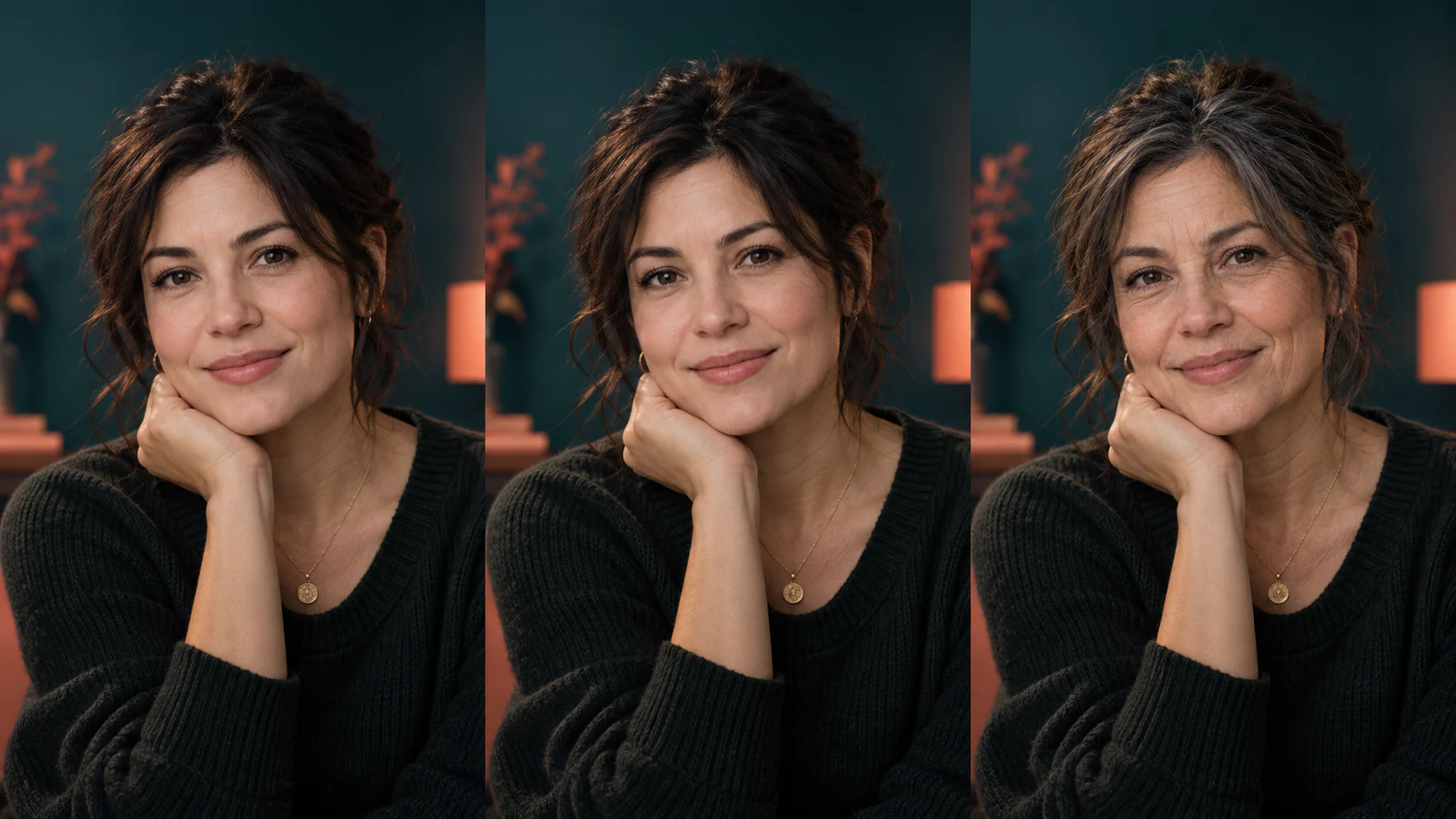
To use an AI age filter naturally, start with a sharp, evenly lit adult portrait and request one modest older-looking or younger-looking variation at a time. Preserve the person's identity, pose, expression, skin tone, clothing, lighting, and background. Compare the result with the source at the same size, checking facial proportions, hair, eyes, skin texture, neck, and hands. Treat the result as a creative visualization—not a prediction of how anyone will actually age—and use only photos you have permission to edit.
What an AI age filter can—and cannot—show
An AI age filter creates a visual interpretation of an older-looking or younger-looking portrait. It may adjust visible cues such as hair color, hair density, skin texture, facial volume, and expression lines while trying to keep the person recognizable. The result can help with character concepts, storytelling, profile experiments, or a playful portrait study. It is not a medical assessment, a genetic analysis, or reliable evidence of how a real person will look at a future or past age.
Open the AI age filter in Makerr Studio, then choose the dedicated portrait age filter tool. Keep the request narrow: create one age-inspired variation while preserving the original face, pose, clothing, lighting, and setting. That constraint gives you a clear review standard. If unrelated features change, the result has drifted even when the overall image appears polished.
Choose a source portrait with reliable visual information
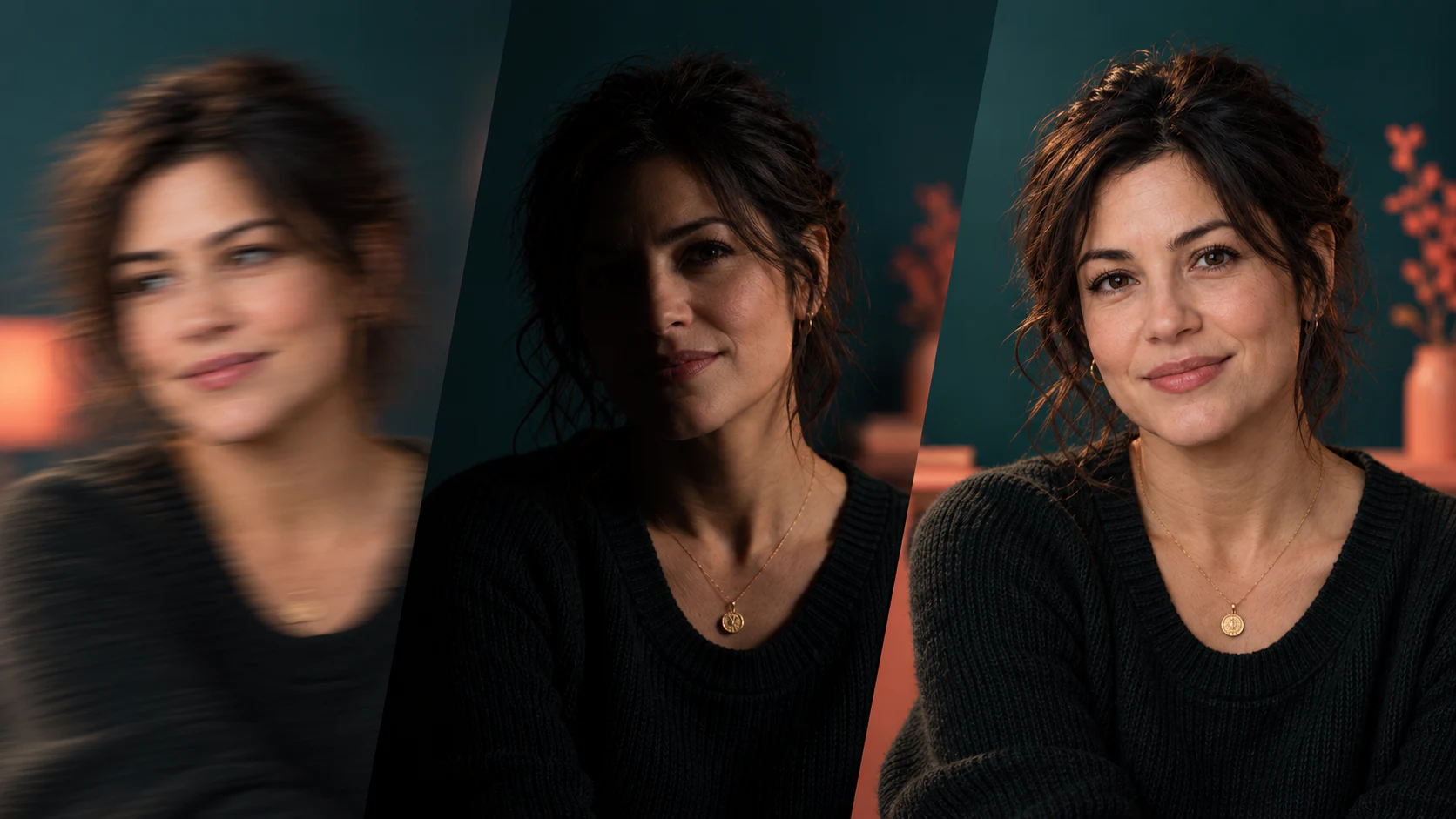
Begin with the largest original file available rather than a screenshot, thumbnail, or image repeatedly compressed by messaging apps. A head-and-shoulders portrait taken near eye level usually provides enough information for the face, hairline, neck, and clothing to remain coherent. Soft frontal light or gentle side light reveals form without hiding half the face. Both eyes, the jawline, and the mouth should be visible, and the subject should be in focus.
Avoid strong motion blur, sunglasses, a hand across the face, deep colored lighting, and heavy beauty filters. Those conditions remove or overwrite the texture the edit needs to interpret. A dramatic profile can be useful for a creative result, but it is harder to compare identity because one side of the face is missing. If the only available photo is difficult, make the requested change more restrained and review uncertainty instead of assuming the system reconstructed hidden details correctly.
Decide on a subtle age direction before you generate
Choose either an older-looking or younger-looking treatment for the first result, not both and not a long sequence of exact ages. Apparent age is influenced by lighting, expression, hairstyle, makeup, camera distance, and image quality as well as facial features. Asking for a modest direction—slightly older-looking, naturally mature, or subtly younger-looking—reduces the amount of visual reconstruction and makes identity easier to preserve.
Avoid prompts that demand perfection, guaranteed realism, or an exact future appearance. They create expectations an image generator cannot support. Instead, describe observable qualities: keep the same bone structure, eye spacing, nose shape, skin tone, expression, and camera angle; add only restrained age-related texture; and maintain natural asymmetry. For a younger-looking variation, ask for subtle changes without turning an adult into a child or erasing the features that make the person recognizable.
Step by step: create a natural age-filter portrait
Upload a portrait you own or have permission to edit. Save the untouched source, then request one restrained age direction. Generate a single result and place it beside the original at the same crop and display size. Start by checking identity and facial proportions. If those remain stable, inspect smaller details such as texture, hair, ears, neck, clothing edges, and the background. Reject a result with identity drift before spending time polishing it.
When the first result is close, revise one variable at a time. You might request less texture, more consistent hair, or the original expression. Do not combine age, hairstyle, makeup, body shape, wardrobe, and background changes in one step; you will not know which instruction caused a problem. Save each approved version separately, and compare against the original again after every revision. A short, controlled sequence is easier to evaluate than dozens of loosely related generations.
- Select a sharp adult portrait and keep an untouched copy.
- Request one subtle older-looking or younger-looking variation.
- Preserve identity, pose, expression, lighting, clothing, and background.
- Compare the result with the source at the same crop and size.
- Reject identity drift, then refine only one visible detail at a time.
- Save the approved concept with a clear label describing the edit.
Review identity before judging the aging effect
A convincing texture treatment is not enough if the person no longer looks like the source. Compare the distance and angle between the eyes, the shape of the nose and lips, the width of the jaw, the ears, hairline, and distinctive asymmetries. Watch for a face becoming narrower, more symmetrical, or more conventionally stylized. Those shifts can make an image look attractive while weakening identity. The goal is continuity, not an idealized replacement.
Check expression as part of identity. A neutral source should not become a broad smile unless you asked for it, and the gaze should continue pointing in the same direction. Compare the five-minute portrait checklist before uploading if you need a quick way to assess lighting, framing, expression, and source quality. Better inputs make changes easier to review, but every generated result still needs a deliberate side-by-side check.
Inspect texture, hair, neck, and hands together
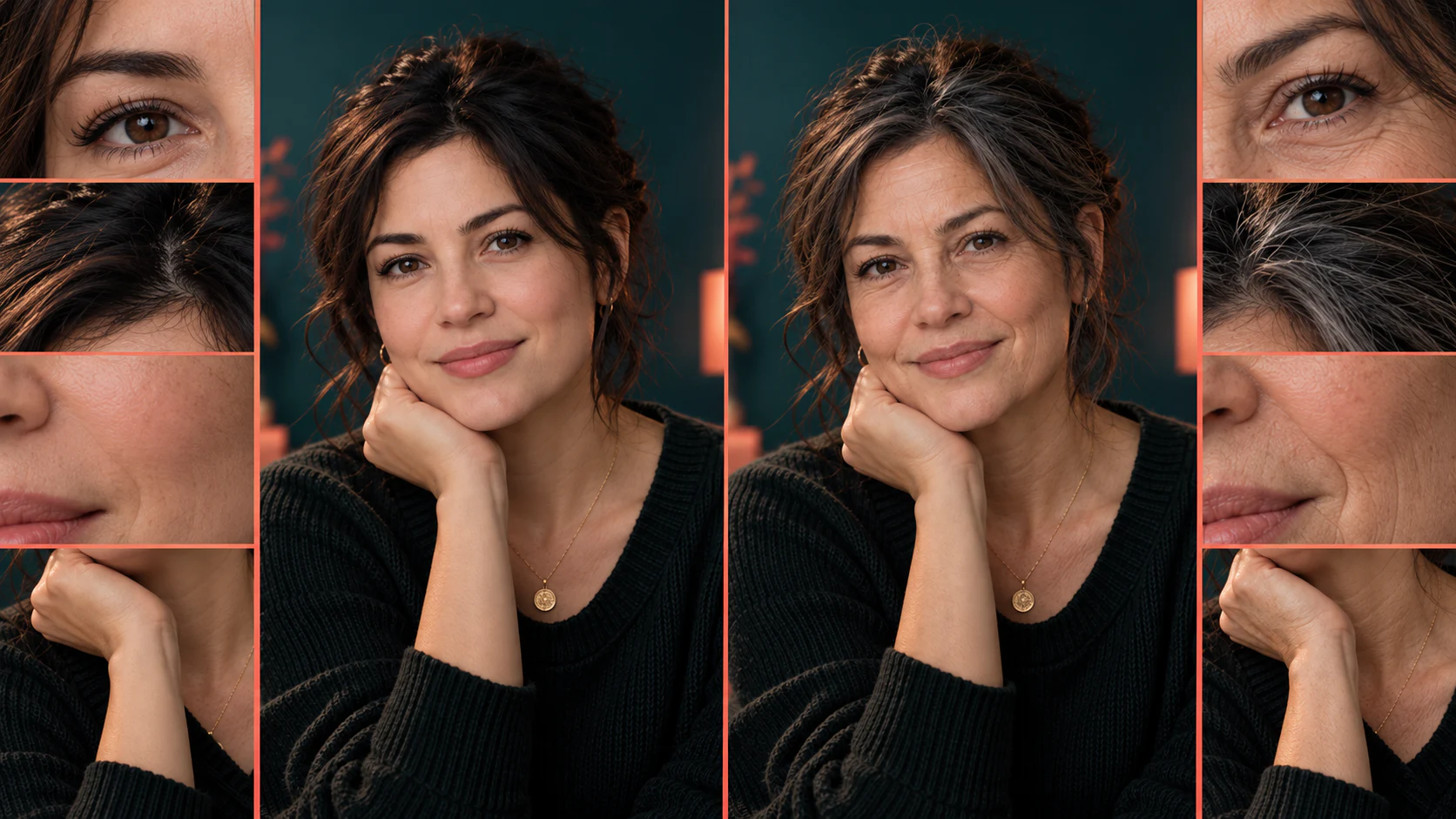
Age cues should belong to one photograph. Skin texture needs to follow the original light direction and image sharpness rather than appearing as a separate overlay. Hair color and density should change consistently around the hairline, temples, brows, and facial hair. The neck should not remain unnaturally smooth beside a more textured face, and the ears should not change size or position. Subtle variation is more believable than applying the same texture everywhere.
Hands often reveal an incomplete edit when they are visible near the face. Compare their texture, proportions, jewelry, and fingernails with the source. Also inspect glasses, earrings, collars, and background edges, because image generation can bend or duplicate small objects while focusing on the face. Review the full frame at normal size, then zoom in only to diagnose a specific issue. A technically busy close-up should not distract from whether the complete portrait feels coherent.
Keep lighting, clothing, and background consistent
The edited portrait should remain in the same visual world as the source. Highlights and shadows on new texture must follow the existing light. A warm lamp should not create cool facial shadows, and a soft photograph should not gain extremely crisp pores on only one area. Clothing folds, jewelry reflections, and the edge of the subject against the background should stay stable unless the prompt specifically changes them.
Background consistency matters because small scene changes can make a comparison misleading. Check straight lines, picture frames, furniture, and repeated patterns near the head and shoulders. If the tool alters the setting, regenerate with a stronger instruction to preserve it rather than repairing every object in a separate editor. For a deliberate new setting, complete and approve the age variation first, then treat the background change as a separate transformation with its own review.
Export and label the portrait for its destination
Keep a full-resolution master and make destination-specific copies for the web, social media, or print. JPEG is practical for a finished photographic background; WebP can reduce web file size while preserving good visual quality; PNG is useful when transparency or lossless editing matters. The older guide to image file formats can help you choose a delivery format without repeatedly compressing the same master file.
Label the image when viewers could interpret it as a real photograph from another time. Plain wording such as AI-generated age variation or age-inspired portrait concept is more useful than implying a prediction. Keep the label near the image in portfolios, presentations, and posts. If the portrait supports fiction, casting, or character design, describe that context. Accurate framing protects the subject and helps the audience understand what the image is meant to communicate.
Protect consent, privacy, and personal context
Use your own portrait or obtain meaningful permission from the recognizable adult in the photo. Permission should cover the transformation and where the result will be stored or shared. Do not use an age filter to embarrass someone, impersonate them, support a false timeline, or make claims about health, longevity, genetics, or future appearance. A creative image does not become factual evidence because it looks realistic.
Minimize the personal information you upload. Crop out addresses, badges, private messages, location clues, and bystanders when they are not needed. Avoid putting health history, family history, or other sensitive data in the prompt. Review the service's storage and deletion controls, keep downloaded files on an appropriate device, and remove versions you no longer need. For public or commercial use, document the source, permission, editing purpose, and final destination.
Common AI age-filter mistakes to avoid
The most common mistake is asking for too much change at once. Dramatic age shifts can replace identity, create theatrical texture, or make the face inconsistent with the neck and hands. Other warning signs include identical wrinkles mirrored on both sides, hair that changes without respecting the original part or light, teeth that are redesigned, and accessories that warp. A polished surface should never override obvious structural errors.
Another mistake is treating the result as a forecast. Real appearance changes are shaped by many personal and environmental factors that a portrait and prompt cannot determine. Keep the purpose creative, review the entire image, disclose the transformation when context requires it, and retain the original. The strongest result is not the one with the most visible aging cues; it is the one that preserves the person and scene while making only the requested variation.
People also ask
Frequently asked questions
What is an AI age filter?
An AI age filter creates an older-looking or younger-looking portrait variation by changing visible cues such as hair and skin texture while attempting to preserve identity.
Can an AI age filter predict how I will look?
No. It creates a visual concept, not a medical, genetic, or biological prediction of a person's future appearance.
What photo works best for an AI age filter?
Use a sharp, recent adult portrait with even lighting, visible eyes and facial contours, minimal obstruction, and enough resolution to compare details.
How do I keep an age-filter result recognizable?
Request a subtle change and preserve facial proportions, expression, skin tone, camera angle, hair structure, clothing, lighting, and background.
Should I label an AI-aged portrait?
Yes when viewers might mistake it for a real photograph or prediction. Describe it plainly as an AI-generated age variation or age-inspired concept.
Can I use someone else's portrait?
Use a recognizable person's portrait only with permission that covers the edit and its intended storage, sharing, or commercial use.