Learn how to find missing logo files, recover deleted graphics, and restore your designs using backups or recovery software.
A missing logo file can delay a website update, print order, or client handoff. You may have deleted it during cleanup, lost it after a drive problem, or forgotten where you saved it.
Before rebuilding the design, check for copies and recovery options. Stop saving new files to the affected drive to avoid overwriting deleted data.
Where to Look for Missing Logo Files
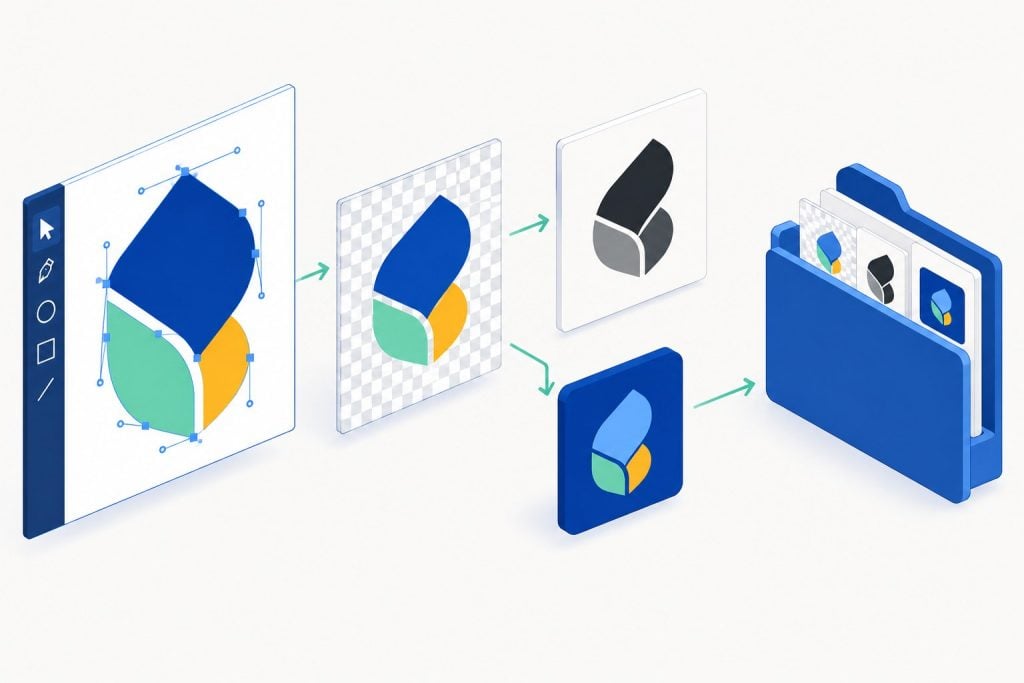
Search your computer and connected drives by project name, client name, or filename, including Downloads and old project folders. If searching by name returns nothing, try extensions such as .ai, .svg, .eps, .psd, and .png. The source and exported images may be stored separately.

Before trying to recover your missing files, check these places:
- Recycle Bin or Trash: The file may still be there if you deleted it during a cleanup.
- Cloud storage and backups: Look in shared folders, online trash folders, external backup drives, and older project archives.
- Design software: Check recent projects and version history, where available. An earlier version may contain artwork missing from the current file.
- Email and client conversations: Search attachments and shared download links. A client, colleague, or print supplier may still have a copy.
If you find an exported image, you may be able to use it as it is. Keep looking for the original design file if you need to edit the logo.
How to Recover Deleted Logos and Images
There are several ways to recover deleted logo files, depending on where they were stored and whether a saved copy is still available.
Restore Files from Trash or Backups
Open the Recycle Bin on Windows or Trash on Mac and locate the missing files. Right-click your selection and choose Restore on Windows or Put Back on Mac to return them to their original location.
Check backups made before the files disappeared: a project folder on an external drive, a ZIP archive saved after a client handoff, or a separate copy uploaded to Google Drive or Dropbox. Copy the missing files from that backup to a safe location. If the files were originally stored in the cloud but have since been deleted, check the service's online trash. If a file was overwritten or changed, look in version history instead. Save the earlier version separately so you can compare it with your current work.
Windows File History and macOS Time Machine are also worth checking if they were already backing up the project folder. Browse to a date when the files were still available and restore the version you need.
Use Image Recovery Software
If the Trash and backups contain no copies, image recovery software may help. Deleted files can remain until new data overwrites them, although TRIM on SSDs can make them unrecoverable even before that happens. You may be able to recover permanently deleted images if their data is still intact.
Whether you need to recover deleted photos used in a design or original graphics files, a photo recovery program such as Disk Drill can scan for PNG, JPG, PSD, AI, and other graphics formats. Scanning and previewing supported files are free on both Windows and Mac, so you can check the results before buying a recovery license. Windows users can also recover up to 100 MB for free with Disk Drill 6 Basic.
If the drive is damaged, keeps disconnecting, or makes unusual clicking sounds, stop using it and contact a professional data recovery service. If it works normally, follow these steps to recover deleted PNG files or other graphics:
- Install Disk Drill on a different drive from the one containing the deleted files. For a USB drive, install it on your computer. If the deleted files were stored on your system drive, shut down the computer and use another machine for recovery where possible, as the running OS can continue writing new data to the affected drive.
- Select the affected drive and click Search for lost data. Choose Universal Scan if prompted to select a scan type.
- Once the scan finishes, click Review found items and search by filename or extension. Try PNG, PSD, or AI depending on what you lost; original filenames may not always survive.
- Preview the files where available. If a design file has no preview, you can still try recovering it and check it in the appropriate editor.
- Select the files and click Recover. Save them to a different drive, then open them to check that the artwork is complete.
If your graphics were created on a phone, first check the app you used to make them for a Trash or Recently Deleted folder. If the images were saved to your photo library or Files app, check its deleted-items folder as well. For the direct drive-scanning method above, recovery software is generally most practical for images deleted from memory cards, such as a microSD card used with an Android phone. iPhones do not expose internal storage for this type of scanning, while Disk Drill’s direct scan of Android internal storage typically requires root access, and constant background writes can quickly overwrite deleted data.
What If Your Original Logo Cannot Be Recovered?
If recovery does not bring back the original, look for a usable copy in published materials. Your website, a brochure PDF, or a presentation may still contain the logo. Download or extract the image rather than taking a screenshot, which may reduce its quality. A PDF may even contain vector artwork you can open in a design editor.
If only a PNG or JPG remains, use the clearest, largest copy as a reference for rebuilding the logo. Simple shapes can often be traced into vectors, while lettering, spacing, and fine details may need manual adjustments. Compare the result with the surviving image before exporting it.
For complex artwork or a poor-quality reference, ask a designer to redraw the logo. Save the editable file alongside PNG exports.
But if you're short on time and rebuilding the original logo isn't practical, you can try an AI logo maker to explore alternative designs. Simply enter your business name, choose your preferred style and colors, and generate several logo concepts to choose from. You can then customize the result to better fit your brand.
How to Prevent Losing Design Files
Keep the editable source, linked graphics, and final exports together in each project folder. Use descriptive filenames such as Client_Logo_v03.ai, and separate working drafts from approved files so cleanup does not remove something you still need.
Set up automatic backups with File History, Time Machine, or another tool, and keep an extra copy in the cloud or on a drive stored elsewhere. If folder synchronization is enabled, deleting a local file may also delete the cloud copy. Check your cloud service's deleted-file recovery options and version history.
After a client handoff or major revision, save a dated project archive. Occasionally restore a file from your backup to confirm it works.

Final Thoughts
Knowing how to recover deleted images can save you hours of recreating lost artwork. Check existing copies and backups first, then consider recovery software if the files are still missing and the drive works normally. If the original design file is no longer available, an exported PNG or JPG can serve as a reference for redrawing the logo.
Once you have the files back, open them in your design software and check that the artwork is complete before sending it to a client or using it in a project. Keep the editable source and final exports together, with a separate backup, so future changes do not depend on a single copy.